Attention

All students will need to log in to MYBCC before the start of classes to reset their password and set up Multi-Factor Authentication. Password Reset Instructions & Support

Learn More
Dismiss
Alert

Enroll for Spring 2026! Classes starting 01/12. View the schedule of classes

Learn More
Dismiss

Password Reset-MFA

BCC has recently introduced Multi-Factor Authentication (MFA) to provide an extra layer of protection for students’ information.

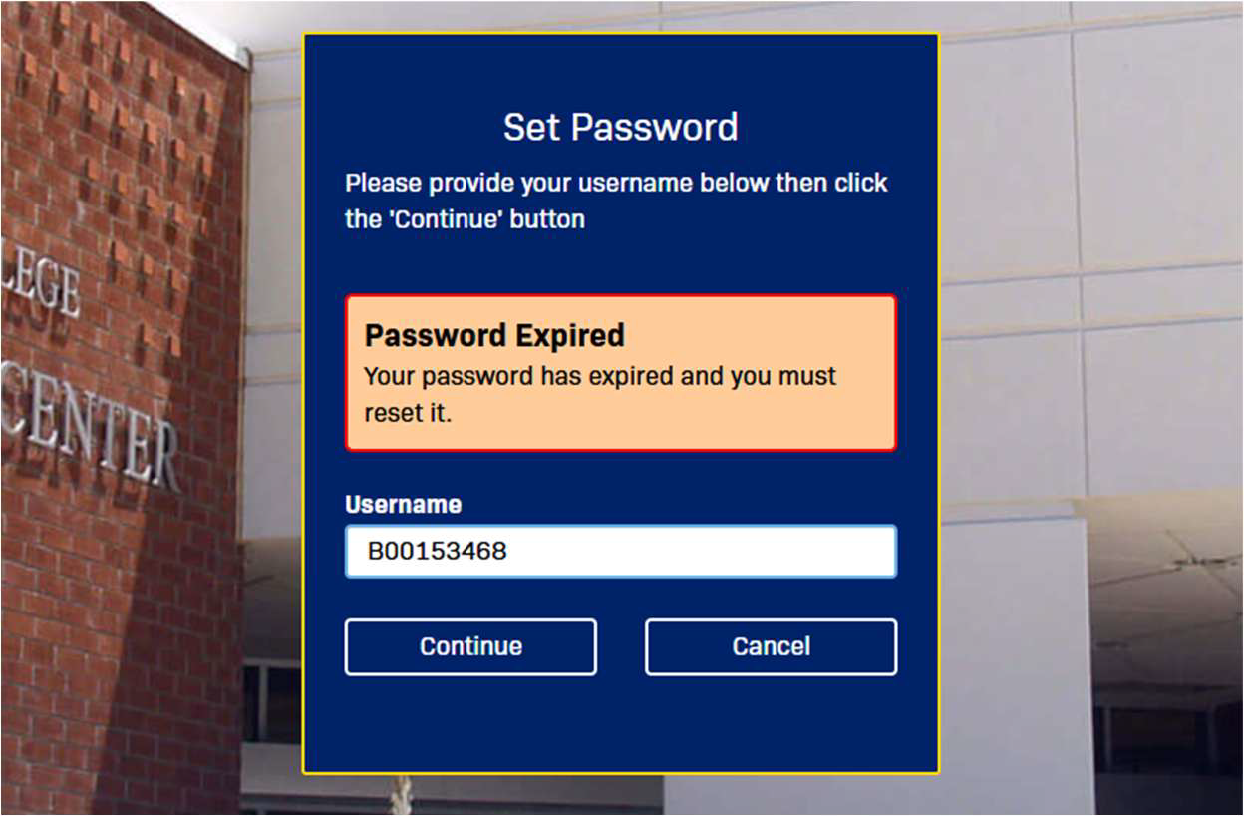
As part of this rollout, everyone must undergo a password reset. This process works on any web browser or BCCD networked Windows computer. We’ve simplified the process by creating a default password format using personal details you already have on hand.

Instructions and options have been listed below to guide you through the process, as well as a video tutorial.  Should you need further assistance, a Zoom Room will be available during the following dates and times:

Friday, January 9th: 12pm to 10pm                                                                                                                                                                                                                              

Saturday, January 10th: 6am to 10pm                                                                                                                                                                                                                         

Sunday, January 11th, 6am to 10pm

Join Zoom Meeting
https://barstow-edu.zoom.us/j/87826893647?pwd=GrZJsaCrQ0iaGe9TkIn9Qq1PfEvVfE.1

Meeting ID: 878 2689 3647
Passcode: 709800

THANK YOU for supporting a secure and connected learning environment at 

Barstow Community College.
Video Instructions/PDF Download

Direct YouTube Link


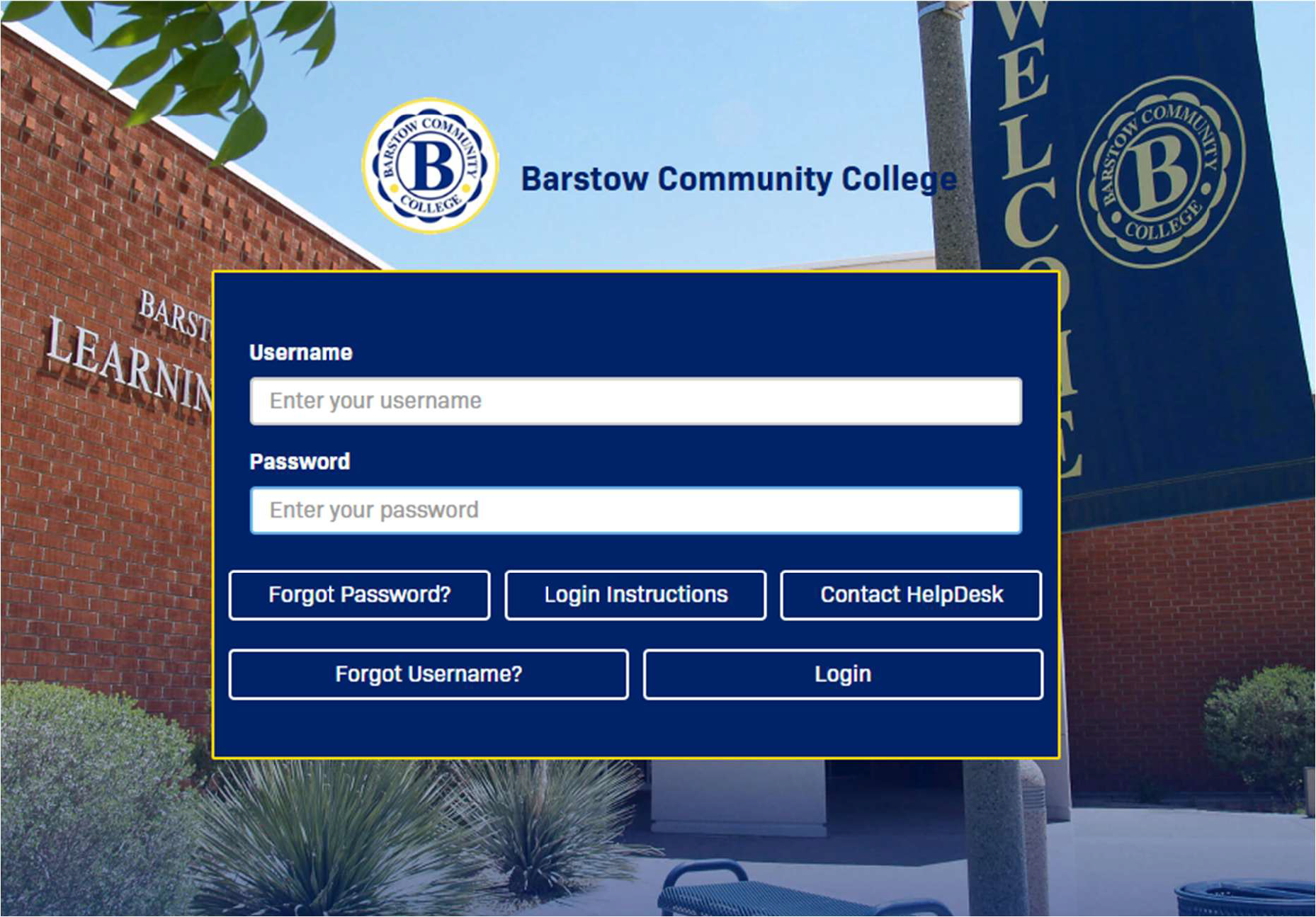
Step 1: Password Reset

URL: https://www.login.barstow.edu


Default Password Format:

  • Last 4 of B number
  • First 2 letters of first name in UPPERCASE
  • First 2 letters of last name in lowercase
  • @ symbol
  • Day (dd) of Birth

Example:

  • Name: Studious Viking
  • B number: B00404322
  • Birthday: June 21, 1901

PASSWORD: 4322STvi@21

Step 1 MFA

Step 2: Enroll in Multi-factor Authentication (MFA)

MFA Setup Instructions option 1

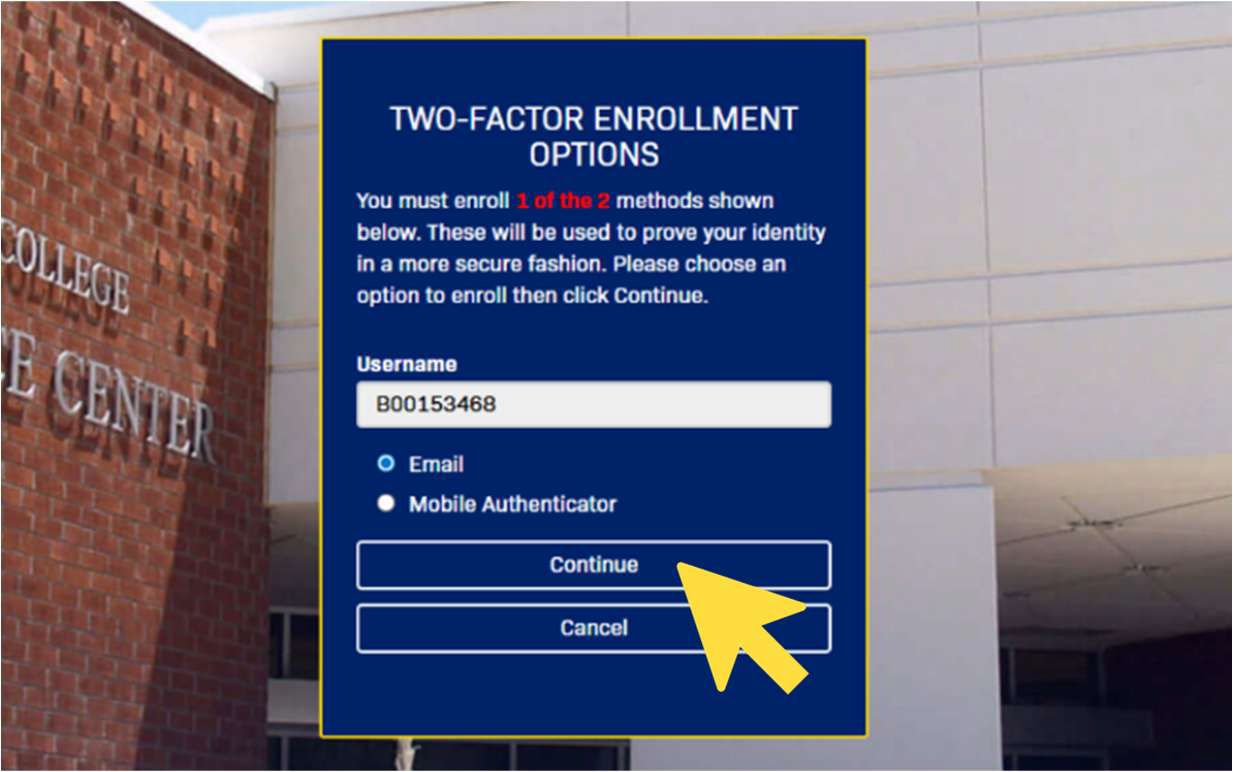
You will be prompted to select an option.

To receive a One Time Passcode (OTP) via a non-BCC email, select ‘Email’ and press the ‘Continue’ button.

MFA Enter 2nd factor code

Once you enter a non-BCC email address, you will receive a code from My BCC or mybcc@bccd.onmicrosoft.com.

Enter the code you received in the 2nd Factor / One Time Passcode box and press the ‘Login’ button.

Successful enrollment!

Successful enrollment!

Mobile Authenticator

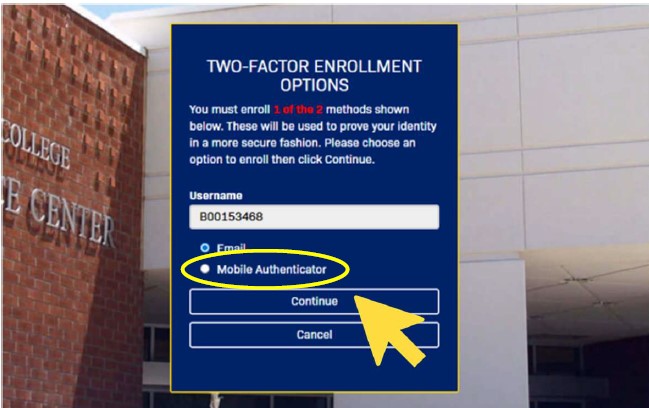
You will be prompted to select an option.

To receive a One Time Passcode (OTP) via a Mobile Authenticator Application, select ‘Mobile Authenticator’ and press the ‘Continue’ button.

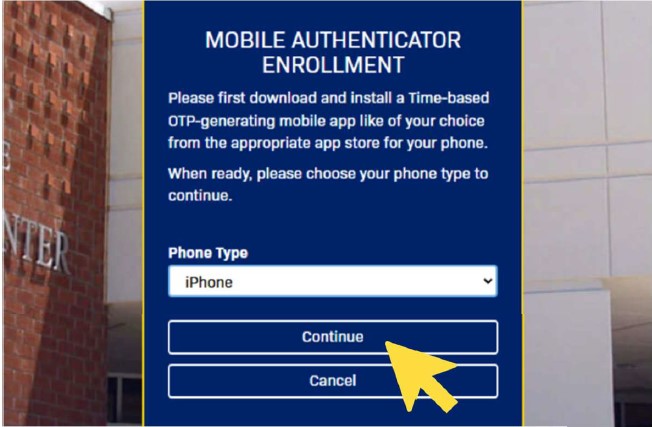
Select phone type

Select a phone type (Android, iPhone, Windows) and press the ‘Continue’ button to generate a QR code to scan on your phone, and follow the instructions to complete enrollment.

QR Code Generation

Enter the code you received in the 2nd Factor / One Time Passcode box and press the ‘Continue’ button.

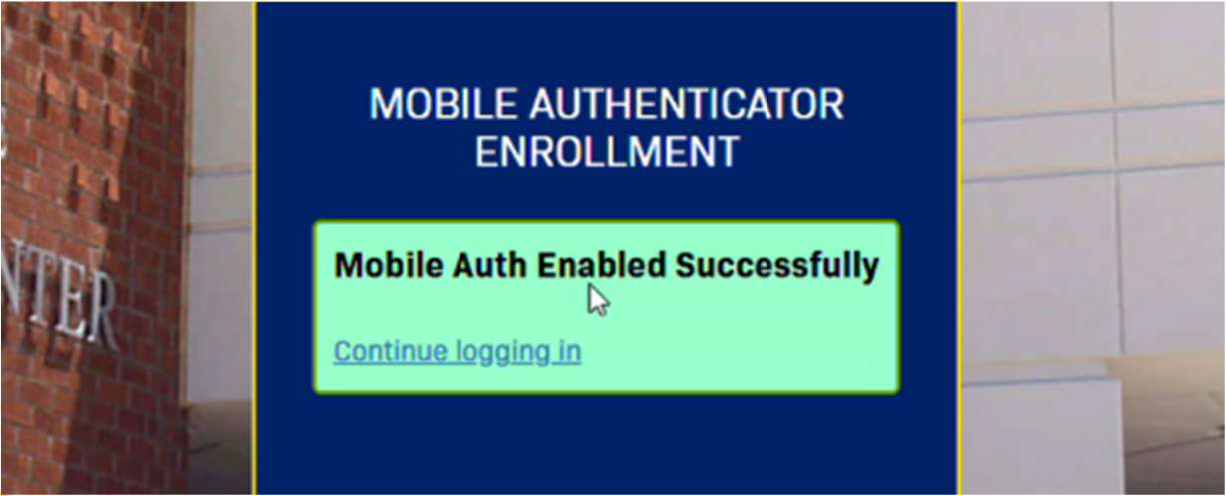
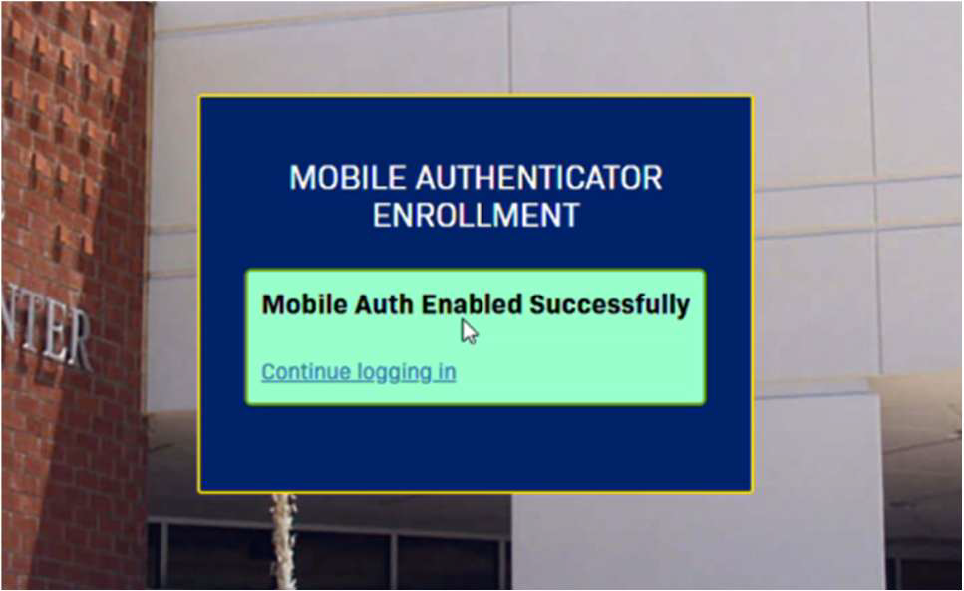
Mobile Authentication Success

Successful enrollment!

Open Authenticator Step 1

You will be prompted to select an option.

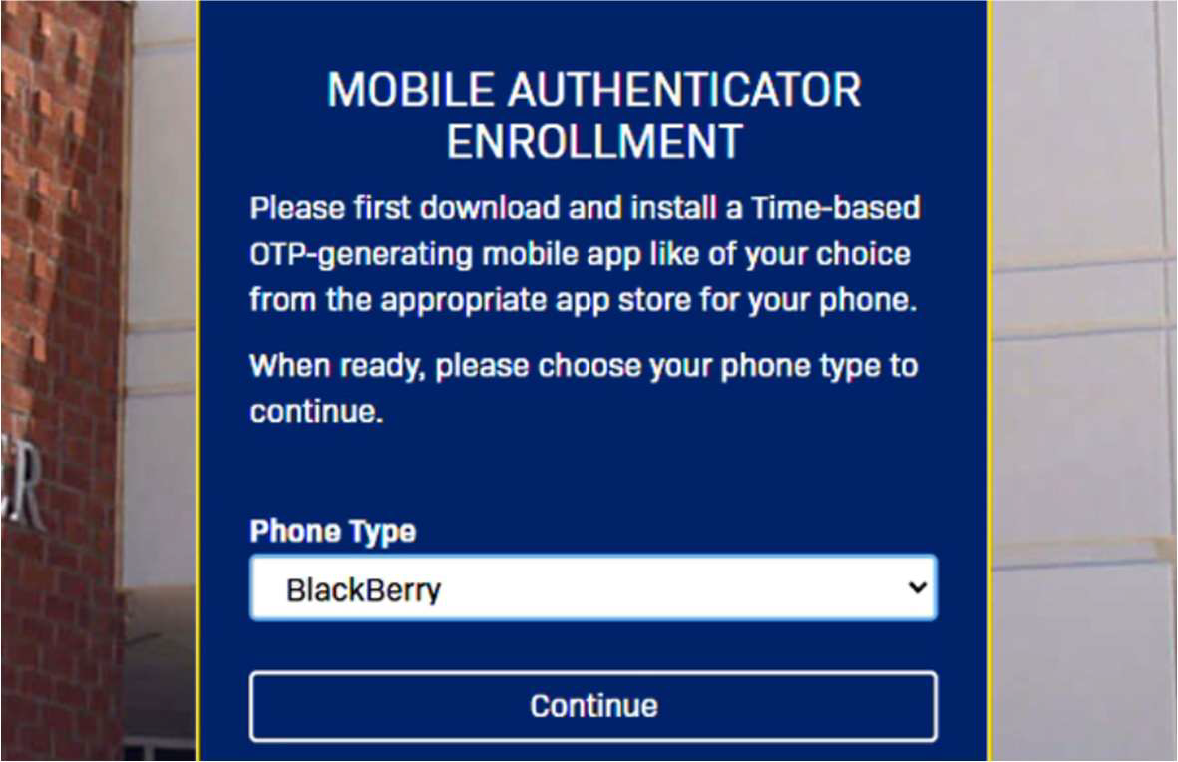
To receive a One Time Passcode (OTP) via the Open Authenticator Application, select ‘Mobile Authenticator’ and press the ‘Continue’ button.

Select phone type

For this option, select Blackberry as the phone type.

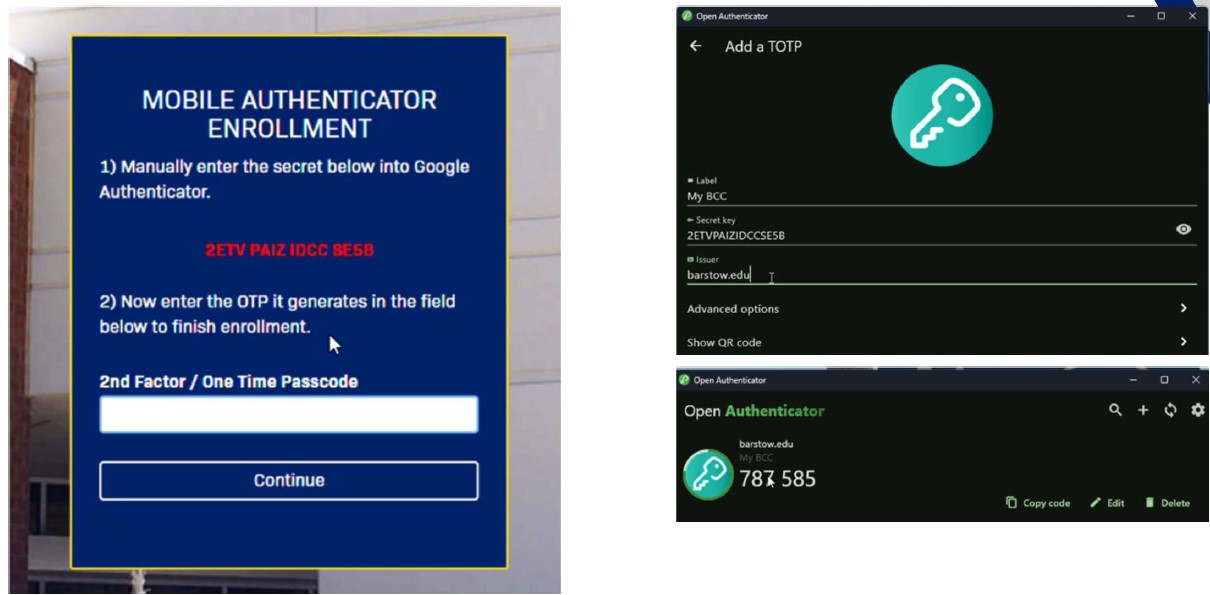
Download the free Open Authenticator application on your desktop using one of the links below.


For Microsoft:
https://apps.microsoft.com/detail/9pb8hfzfklt4?hl=en-US&gl=US

For Android and Apple (CHROME):
https://openauthenticator.app/#download

Your computer authenticator application will generate a code. Examples:

Code Generation

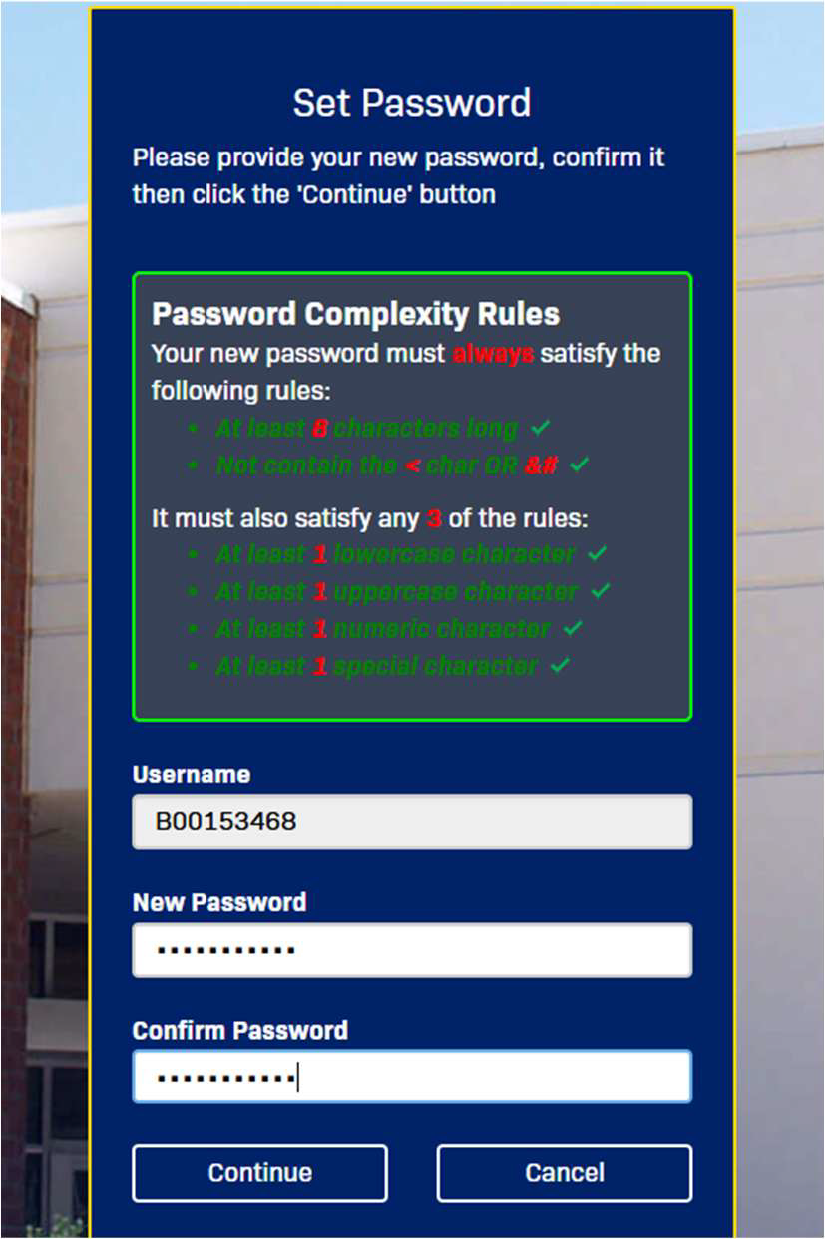
Set a new password

Once you have successfully enrolled in MFA, you will be prompted to set a new password.

password complexity rules

Your new password must:

  • Be at least 8 characters long
  • Not contain <, &, or #
  • Contain at least 1 lowercase character
  • Contain at least 1 uppercase character
  • Contain at least 1 numeric character
  • Contain at least 1 special character
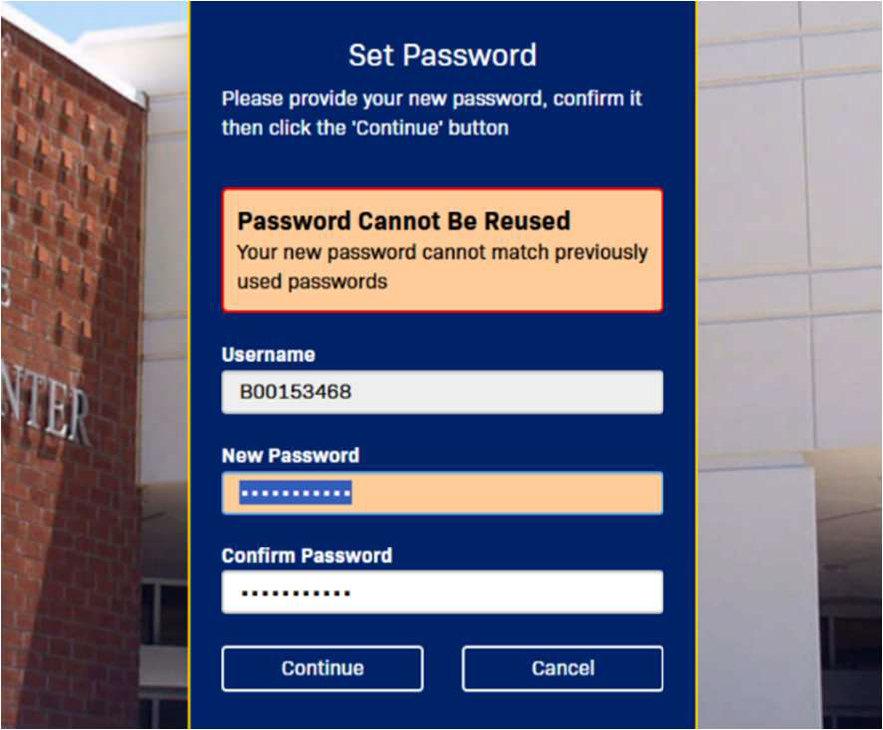
Can not use the same password

NOTE: Passwords
cannot be re-used.

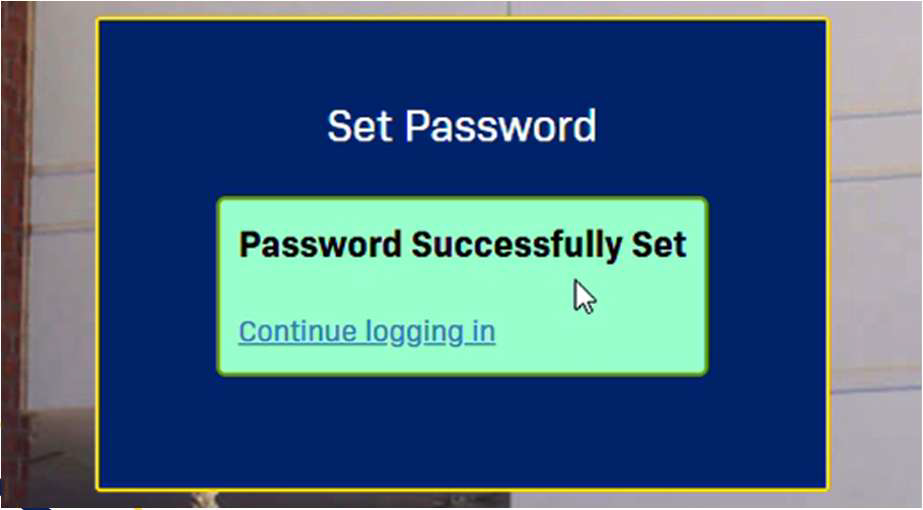
Password set successfully

Successful password creation!

Step 3: Create a New Password

Set a new password

Once you have successfully enrolled in MFA, you will be prompted to set a new password.

password complexity rules

Your new password must:

  • Be at least 8 characters long
  • Not contain <, &, or #
  • Contain at least 1 lowercase character
  • Contain at least 1 uppercase character
  • Contain at least 1 numeric character
  • Contain at least 1 special character
Can not use the same password

NOTE: Passwords
cannot be re-used.

Password set successfully

Successful password creation!